Print Cost Control
Cyberprinter puede asociar un costo por impresión de acuerdo a los siguientes criterios:
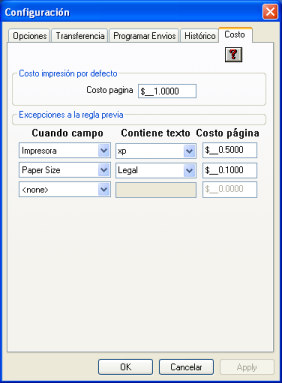
- Text contained within the printer name, which allows setting a cost per printer or printer type (laser or inkjet)
- Text contained within the document name
- Print color type (only for color printers)
- Paper size
You can set up to three cost criteria at the same time. When printing, Cyberprinter checks whether the print job meets any of the criteria defined in this section. If a criterion is matched, Cyberprinter will assign the corresponding print cost. If not, Cyberprinter will assign the default printout cost. The cost-setting scheme is very flexible and can work with any number of printers, even though only three exception rows are available.
Examples of use:
CASE 1
You have two printers: a monochrome laser printer (HP LaserJet 6L) and a color printer (HP 600 DeskJet), and you want to charge $0.50 per page for the first and $1.00 per page for the second. You can set the default printout cost to $1.00 and then select “Printer Name” in the first column and type “6L” (since you only have two printers, there is no risk of confusion with another “6L”). Then enter $0.50 in the last column.
CASE 2
You have a color laser printer but want to assign prices depending on whether the print is monochrome or color. First set a default price ($1.00), then select “Color” in the first column, then select “Color” again in the second column, and finally enter ($1.50) in the third column. With this setup, every color print will cost $1.50, and monochrome prints will cost $1.00.
CASE 3
You have one printer and want to charge $1.20 for legal-size prints, $0.80 for envelope prints, $2.50 for tabloid-size prints, and $1.00 for letter size. First set the default price to $1.00 to cover letter size and any other unspecified types. Then select “Paper Size” in the first column and “Tabloid” in the second column, then enter $2.50. Repeat the process by selecting “ENV” in the second column and entering $0.80 in the third column, and finally, for the last row, select “Paper Size,” choose “Legal,” and enter $1.20.
CASE 4
You have 15 printers with different names and want to assign a cost depending on the administrative department they belong to. There are three departments: one with 7 printers, one with 3, and the last with 5.
Solution: Go to the printer control panel and rename the printers by adding text that identifies their department, for example: “HP LaserJet 3350 (Sales),” “HP 600 DeskJet (Sales),” etc. Then set a default cost. In the first column, select “Printer Name,” write “(Sales)” in the second column, and finally enter the desired cost for this classification.